
Squarespace gives you an export button. That one button is why so many of these projects get scoped wrong.
The button works. It hands you a file WordPress can read, and your writing comes across. The trouble starts when an owner sees the word “export” and assumes the whole site is in the box. A good chunk of what you paid for, and what your customers use every day, never makes it into that file.
We’ve moved sites off Squarespace and we’ve also told people to stay on it. What follows is the part most guides skip: what comes across, what quietly doesn’t, and where the money and the time go.
What the Squarespace export gives you
Everything you have to pay someone to rebuild is defined by what’s missing from this list, so start here.
The export lives under Settings, in the Import and Export panel. It produces a single .xml file in a format WordPress understands. That file carries:
- Your standard pages, with their titles and body text
- One blog page and its posts, including categories, tags, authors and publish dates
- Text blocks and image blocks
- Embed blocks
- Basic formatting: headings, paragraphs, lists, links
That is a useful head start. If your site is mostly writing, you just saved weeks of copying and pasting. Squarespace deserves credit for shipping it at all, since Wix offers nothing like it. If you’re coming from Wix instead, the gap list looks different; we cover that version in what breaks and what you keep in a Wix migration.
What it quietly leaves behind
Here is what turns a two-week project into a two-month one. None of this is in the export file:
- Your design. Every font, color, spacing choice and layout setting stays behind. Squarespace templates are their property and they do not travel.
- Custom CSS. Any styling you or a designer added by hand is gone.
- Product pages and all commerce data. More on this below, because it’s usually the biggest line item.
- Index pages, album pages, event collections and portfolio pages. These page types are skipped entirely, layout and all.
- Forms, and every submission they ever collected. The form block doesn’t export and neither does the data behind it.
- Member areas. The gated content and the member records both stay.
- Audio blocks, video blocks and product blocks.
- Your navigation. Folders and menu structure don’t come across as structure.
- Your page titles and descriptions. The short bits of text Google shows in search results are written per page inside Squarespace, and they don’t ride along.
Two more constraints are worth knowing before you plan the work. The export handles one blog page per run, so if you have a news section and a separate resources section, you export them separately. It’s easy to walk away thinking you got everything when you got half.
The second one bites months later. Your images don’t move. The export writes down where each picture lives on Squarespace’s servers and points at it, so the new site loads fine and nothing looks wrong. Then you cancel your subscription and every image goes blank at once. The files have to be pulled down onto your own hosting before you close the account, and that step has to be on somebody’s list.
Moving offices is the closest comparison. The export is the filing cabinets, and the furniture, the layout, the signage and the customer list are still your problem.
Commerce, which isn’t a migration at all
If you sell on Squarespace, set expectations now. The store doesn’t migrate. It gets rebuilt.
Products come out of Squarespace as a spreadsheet and go into WooCommerce as a spreadsheet, and that part is manageable. The work is everything wrapped around the products:
- Customer accounts move, but passwords never do. No platform can move a password, because none of them store the actual password. Everyone who had a login on your old store needs a reset email at launch, and somebody should write that email before launch day rather than during it.
- Subscriptions do not transfer. If you bill customers on a recurring basis, those agreements live with your current payment processor and your current store. Re-creating them usually means asking customers to re-subscribe, and some won’t. This is the most expensive thing to discover late, so check it first.
- Order history is reference data, not live data. You can import past orders so your records are in one place. Don’t expect them to behave like orders placed on the new store.
- Discount codes, shipping rules and tax settings are all re-entered by hand.
None of that is a reason to stay put. It’s a reason to know the shape of the job before you sign anything. If you run a store, the way you plan and budget the work is a bigger decision than the platform itself. We’ve written about how to manage a developer on an ecommerce build, and it applies double to a move like this one.

Your web addresses, and the map that protects your traffic
This is where a migration either keeps your Google rankings or throws them away.
Squarespace builds its web addresses its own way. Blog posts usually sit under a prefix, something like yoursite.com/blog/post-name. WordPress builds them differently. Let that happen unprepared and every link pointing at your old pages, from Google, from other sites, from an email you sent two years ago, lands on an error page. Traffic you spent years earning disappears in a week.
The fix is a redirect map. A 301 redirect is a permanent instruction that sends anyone who visits an old address straight to the new one, and it passes along the credit that page earned in search. The map is a list: every old address on the left, its new home on the right.
Build the list from three sources, not one:
- A crawl of the live site. This finds every page you link to from somewhere on the site.
- Google Search Console. This finds pages that earn visits even though nothing on your site links to them. There are usually more of these than anyone expects.
- Your backlink data. This finds pages that other websites point at, including ones you forgot existed.
Any single source misses URLs. All three together is the real list.
Once you have it, put the redirects in at the server level where you can, so they keep working even if WordPress is having a bad day, and leave them in place permanently. Other people’s links don’t expire.
One more thing to copy across by hand: the page titles and descriptions that show up in search results. They don’t export. Somebody has to sit down with the old site and the new one and move them over, page by page, before launch.
Rebuilding forms, galleries and member areas
Everything in this section is billable work. It belongs in the quote you’re comparing, not in a surprise invoice later.
Forms. Each form gets rebuilt in a WordPress form plugin. That means the fields, where the submissions get emailed, any auto-reply the customer receives, and the connection to your mailing list or CRM. Old submissions stay on Squarespace, so export them to a spreadsheet before you close the account if you need the history.
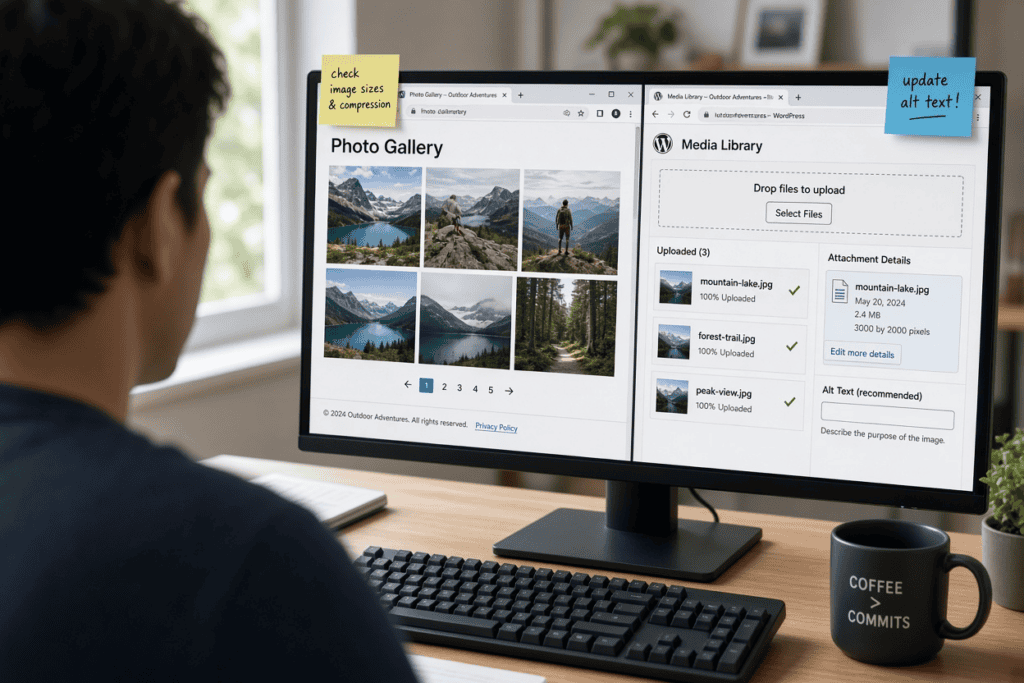
Galleries. Gallery pages come across as loose images at best, and often not at all. The pictures have to be pulled down, uploaded to the new site, and arranged again in whatever gallery tool the new build uses.
Member areas. This is a rebuild, not a move. The gated content, the sign-up flow, the payment link and the member list are four separate pieces. The member records in particular need a plan: who gets access on day one, and how do they get in.
Anything built as an index or album page. Those page types don’t export, so whatever they displayed gets recreated from the live site rather than from the file.
So do this before you talk to anybody. Click through every page of your own site as a stranger would, and write down each thing that does something rather than just sits there. A form, a booking widget, a gallery, a login, a store. That list is your rebuild scope. Hand it to whoever is quoting and ask them to price it line by line. A quote that doesn’t mention your forms hasn’t looked at your site.
What drives the cost and the calendar
We’re not going to print a price here. A number without your site attached to it is worthless, and we don’t know your site yet. What we can tell you is which things move the number, so you can read a quote properly.
Cost goes up with:
- Page count, but only sort of. Forty pages of straight text is a smaller job than eight pages with a store, a members area and a booking system.
- Commerce. Always the largest single factor. Subscriptions add more again.
- The number of interactive pieces on that list you just made.
- Design fidelity. “Match the old site closely” and “give us something better” are different projects. Decide which one you’re buying, and say so out loud, because assuming will cost you either money or disappointment.
- How much traffic you have to protect. A site with years of search traffic and inbound links needs the full redirect mapping exercise. A site nobody has found yet doesn’t.
On the calendar, the two things that hold projects up are almost never technical. They’re design sign-off and content decisions. Speed those up on your side and the whole thing lands earlier. That’s also where the team doing the build matters: you can see how we approach web design and development if you want a sense of who you’d be working with on those decisions.
One sequencing note is worth more than it looks. Do the entire move on a staging site first, a private copy nobody can see, and only point your domain at it once you’ve clicked through and approved it. Do not migrate into your live site and fix it in public.
When staying on Squarespace is the right answer
We’ll talk ourselves out of this one when that’s the honest answer.
Stay where you are if your site is a handful of pages and you’re not selling anything complicated. If you don’t have search traffic worth protecting, and what you want is a better-looking site rather than a different platform, you’re paying for a move that buys you nothing. Redesign inside Squarespace instead and keep your money.
Stay if nobody on your team, or on retainer, is going to keep WordPress updated. WordPress is yours, and “yours” includes the maintenance. Squarespace does that part for you, and that’s a real service with real value. A neglected WordPress site is worse than a maintained Squarespace one, and it isn’t close.
Move when you’ve hit a wall Squarespace can’t get you over. Usually it’s one of four things. Your site needs to talk to another system you already run. Your store has outgrown what the platform allows. You want to own what you’ve built rather than rent it. Or you’re paying every month for workarounds that make Squarespace behave. Our fuller argument on renting versus owning your site is in why we push back on consumer website builders, and it’s worth reading before you decide.
One thing we should say plainly, because this is where we differ from most people who write about builders. The problem was never building a site with tools. We build with page builders on purpose, every day, and we’d do it on your site too. The problem is a platform that decides for you what your business is allowed to do next.
The short version
The export gets your writing out. Everything that makes your site work, the design, the forms, the store, the member area, the web addresses that hold your search traffic in place, comes across because someone moved it deliberately. Price that work and plan it, and moving from Squarespace to WordPress is a good week’s relief instead of a bad quarter.
Before you talk to anyone, do the two things in this post: click through your own site and list everything that does something, and pull your page list out of Search Console. With those two lists in hand you’ll get a real quote instead of a guess.
If you’d like a second opinion on whether the move is worth it for you, we’ll give you one. Send us your site and we’ll do a free migration assessment: what would transfer, what would need rebuilding, and our honest read on whether you should do it at all. If the answer is stay put, we’ll say so.